 apps
apps
Custom Widget Redirects
Custom Widget Redirects display a popup, top bar, or select widget on your storefront that prompts visitors to switch to a localized version of your store based on their location.
Redirect List
The redirect list is where you manage all your widget redirect buttons.
Adding a Redirect
- Go to Geolocation Flow Dashboard → Custom Widget Redirects
- Click Add redirect
- Enter the button label (e.g., “Shop Canada”) and destination URL
- Optionally set a country flag to display next to the button
- Enable domain redirection if you want visitors to stay on the same page path when switching domains
- Save your changes
Managing Redirects
- Reorder — drag and drop to change the button display order
- Edit — click a redirect to update its label, URL, or settings
- Delete — remove redirects you no longer need
- Status — toggle redirects between Active and Draft
Free plan: Up to 1 redirect button. Pro plan: Unlimited.
Conditional Button Visibility (Pro)
Pro plan only. Show or hide individual buttons based on visitor location:
- Enable conditional visibility on a redirect button
- Select the countries or continents
- Choose whether to show or hide the button for visitors inside or outside those locations
Customize Page
The Customize section controls the visual appearance of your widget.
Widget Type
Choose how the widget appears:
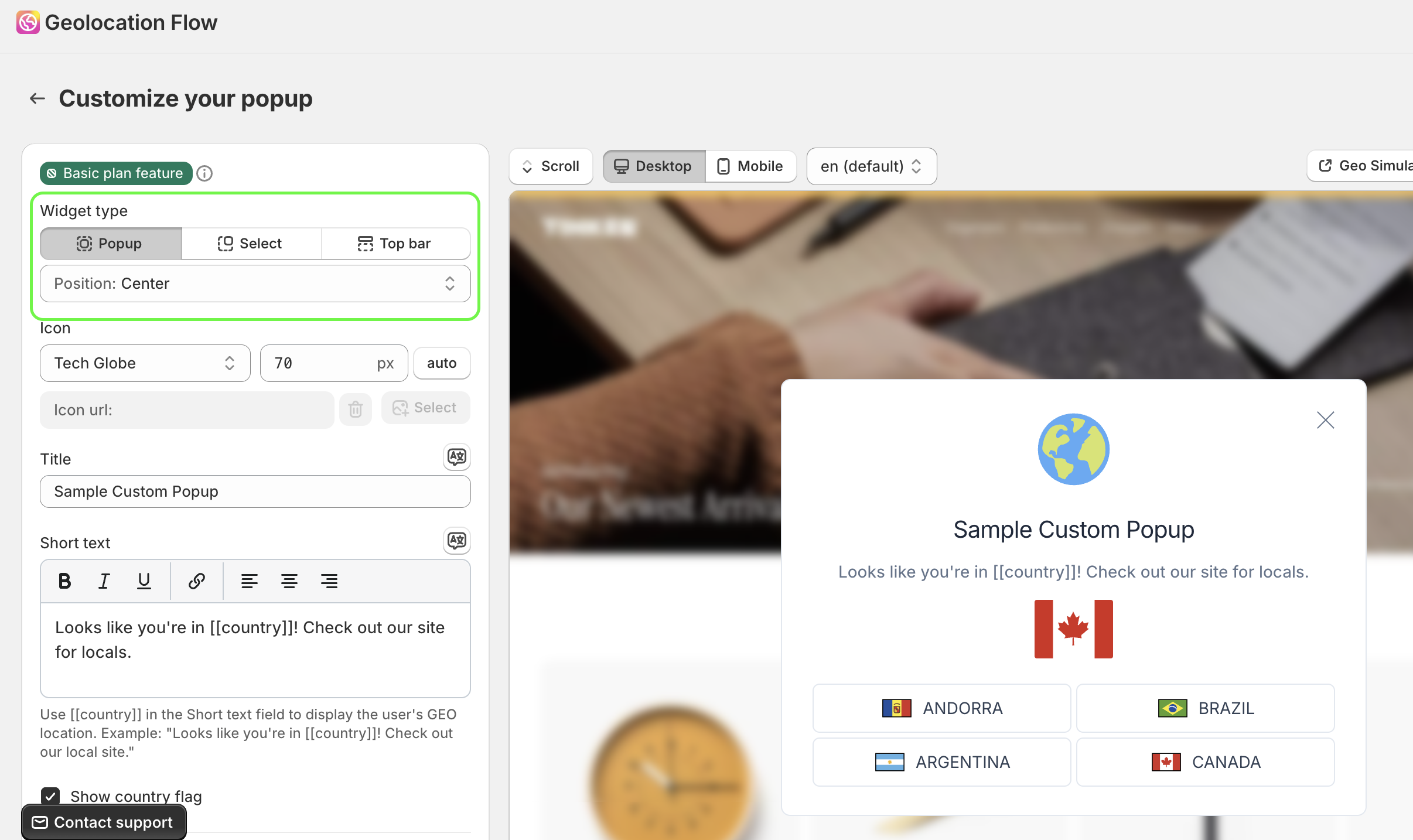
- Popup — a modal overlay in the center of the screen
- Top Bar — a slim banner at the top of the page (can be sticky). Pro plan only.
- Select — a compact select widget. Pro plan only.
Templates
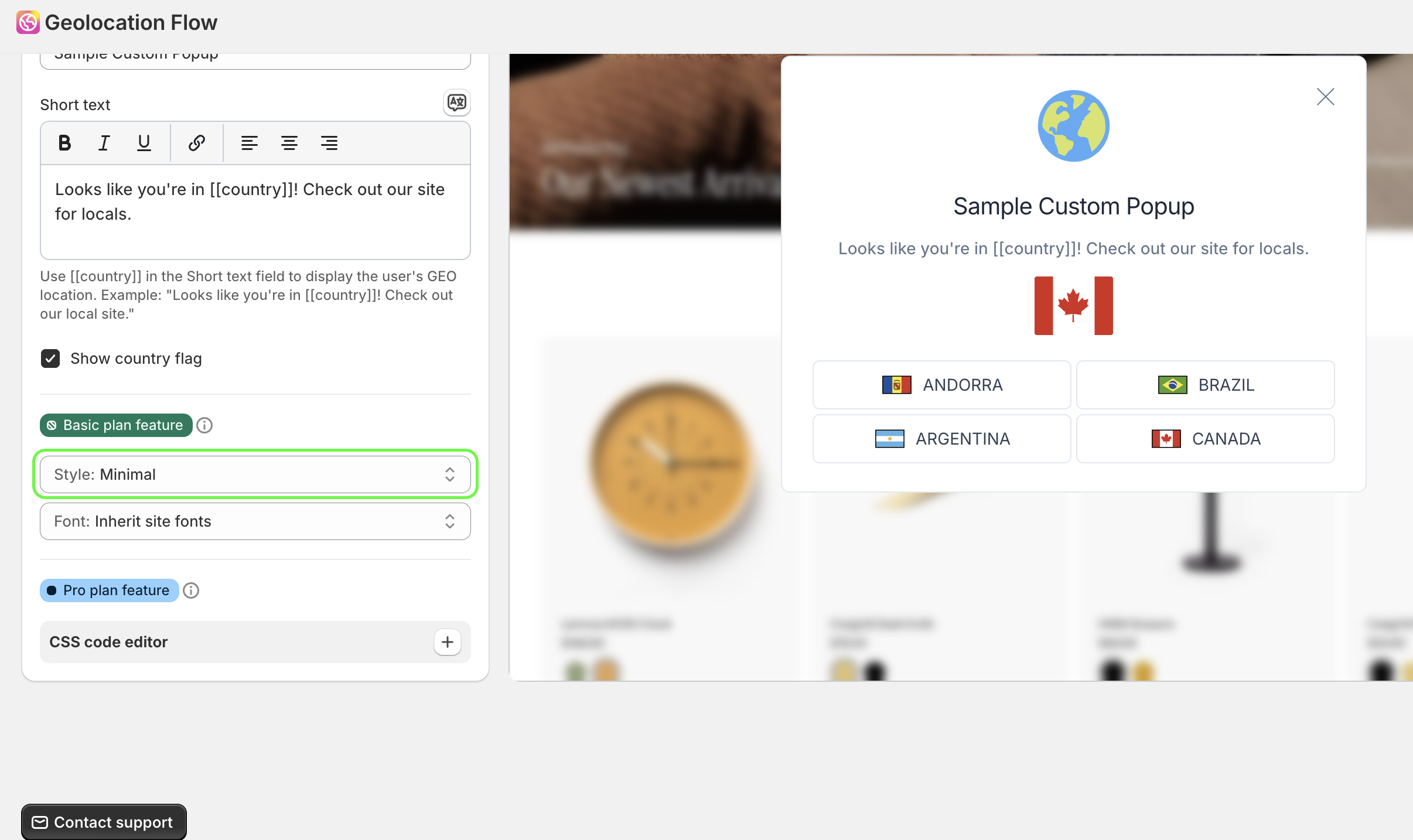
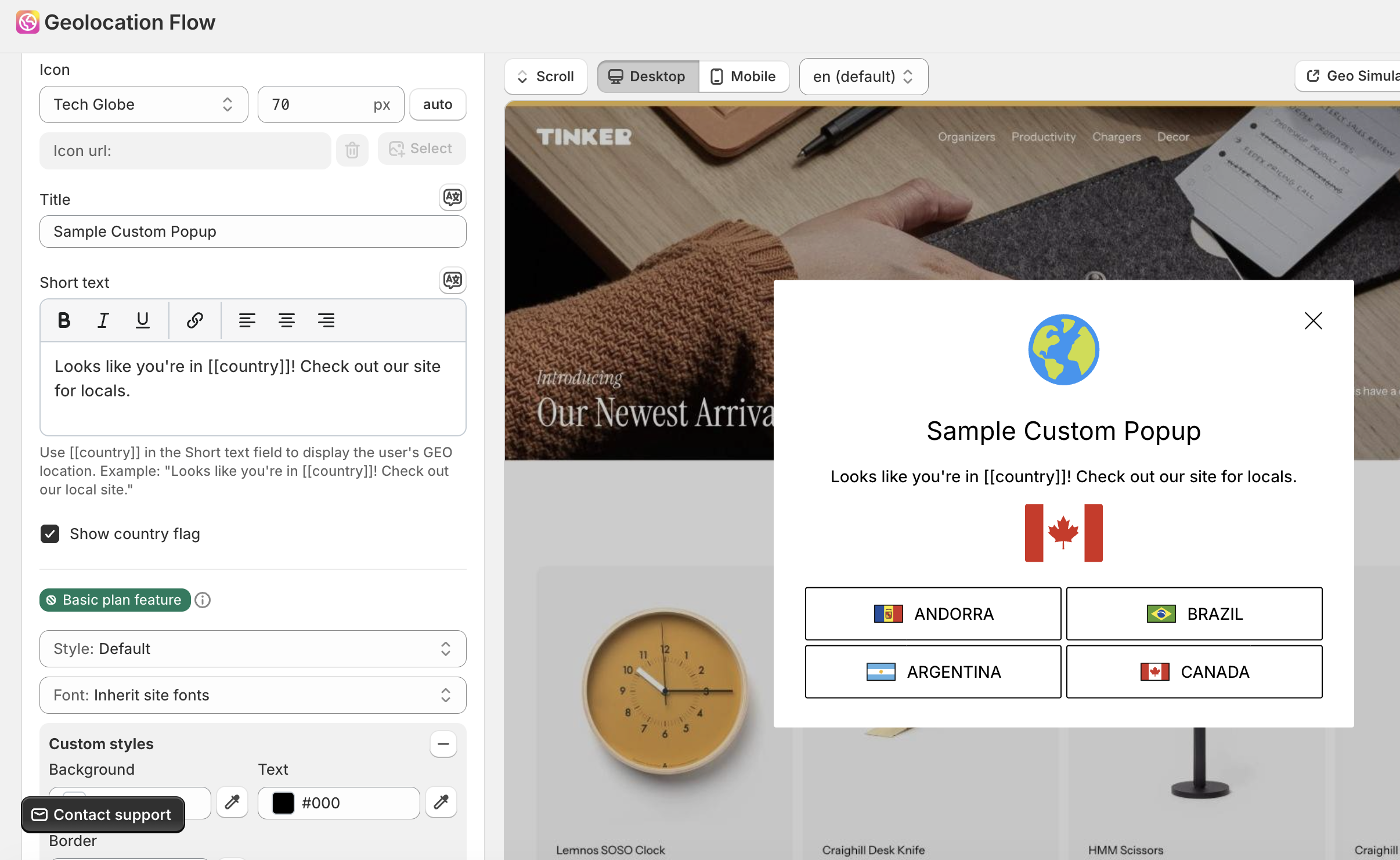
Pro plan only. Pick from 6 built-in templates (Default, Modern, Minimal, Rounded, Glass, Dark) that control the overall widget style. The Default template supports full customization through the dashboard style settings (colors, fonts, etc.). Other built-in templates use fixed styles — to modify them, use the custom CSS code editor.
Layouts
Available when using the Popup or Select type:
- Grid — buttons displayed in a grid layout
- Stack — buttons displayed in a vertical stack
- Dropdown — buttons displayed inside a dropdown within the popup (Popup type with Default template only)
Icon
Choose from 18 built-in globe icons (default, globe1 through globe17) or provide a custom icon URL. You can also set a custom icon width or show the visitor’s country flag as the icon.
Colors & Fonts
Customize these appearance settings:
| Setting | Description |
|---|---|
| Font | Inherit from theme or set a custom font family |
| Background | Widget background color |
| Text | Text color |
| Border | Border color |
| Button background | Redirect button background |
| Button text | Redirect button text color |
Button hover colors are automatically derived by swapping the button background and text colors.
Title & Body Text
- Set a custom popup title and body text (body text supports rich text/HTML)
- Add per-language translations so the widget displays in the visitor’s language
Multi-Language Support (Pro)
Pro plan only. Add locale-specific translations for the title, body text, and button labels. The widget automatically shows the correct translation based on the store’s active language.
Content & Style Section
The Content & Style section provides a live preview of your widget as you make changes. Adjust colors, text, and layout and see the result in real time.
Custom CSS (Pro)
Pro plan only. Add custom CSS code for full design control. You can also set a custom HTML ID on the modal element and disable the default CSS variables to start from scratch.
Related Docs
- Geo Targeting Rules — control when and where the widget displays
- Display Settings — configure display frequency, delay, and page visibility
- UTM & Tracking — track redirect clicks in analytics
- Custom Widget — CSS variables, data attributes, and custom JS rules