 apps
apps
Inline Widget
The Inline Widget embeds a country selector <select> dropdown directly in your theme layout — no popup overlay is shown. Visitors select their destination from the dropdown and are redirected immediately.
It shares the same redirect list as Custom Widget Redirects, so any redirect buttons you’ve already set up appear as options in the inline dropdown.
Adding to Your Theme
The inline widget is added as an app block in the Shopify theme editor:
- Go to Online Store → Themes → Customize
- Navigate to the section or template where you want the dropdown to appear
- Click Add block and select Custom Inline Dropdown
- Save the theme
The dropdown renders inline wherever you place the block — typically in the header, footer, or a dedicated section.
App Block Settings
When you add the inline widget as an app block in the theme editor, the following settings are available in the block panel:
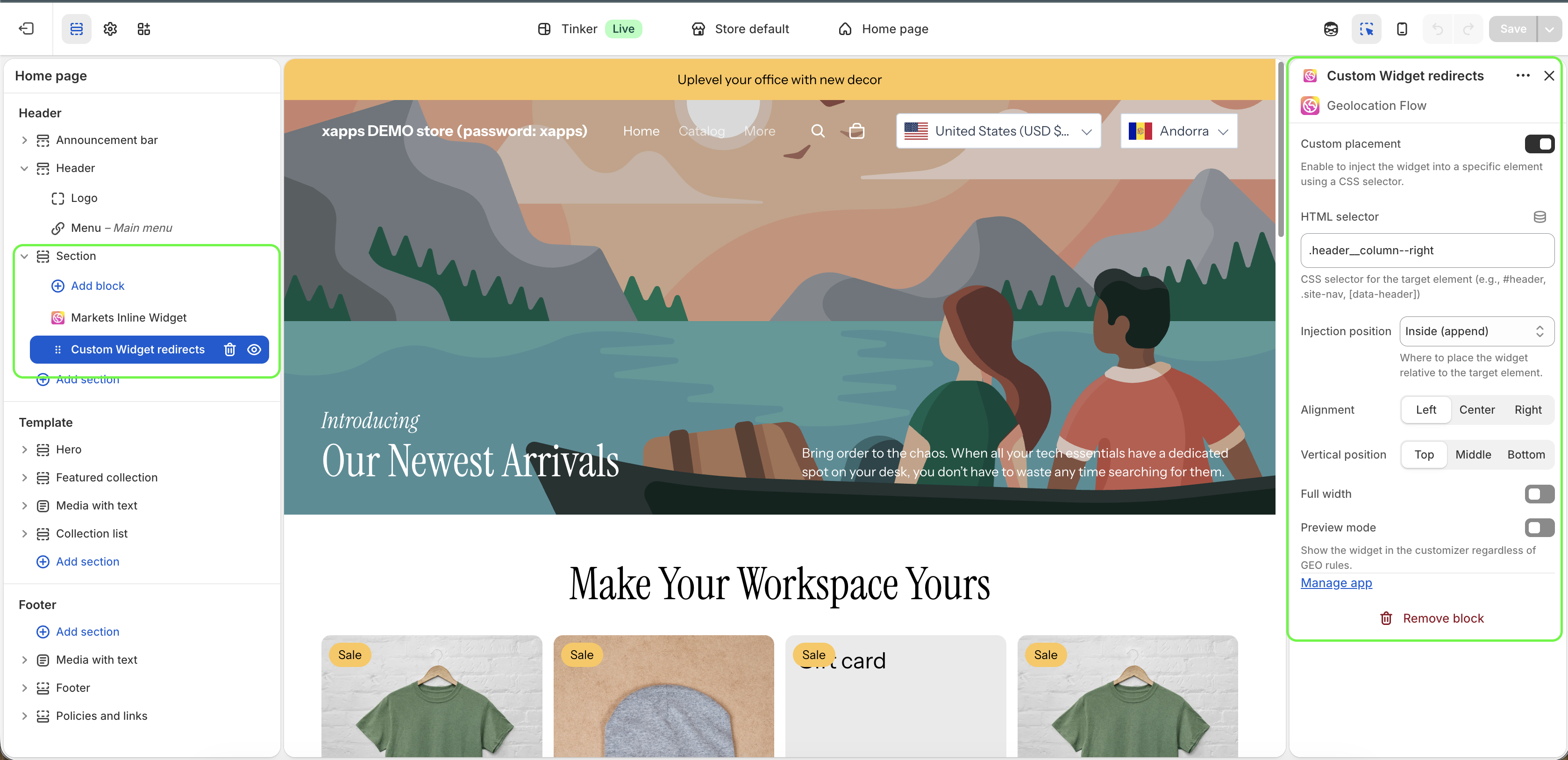
| Setting | Description |
|---|---|
| Alignment | Horizontal alignment of the dropdown — Left, Center, or Right |
| Vertical position | Vertical alignment within its container — Top, Middle, or Bottom |
| Full width | Stretch the dropdown to fill the full width of its container |
| Preview mode | Show the widget in the theme editor regardless of geo targeting rules — useful for positioning without needing to simulate a country |
| Custom placement | Inject the widget into a specific element using a CSS selector instead of the block’s default position |
| HTML selector | CSS selector for the target element (e.g., #header, .site-nav, [data-header]) — only used when Custom placement is enabled |
| Injection position | Where to place the widget relative to the target element — Inside (append), Before, or After |
Customize Page
Go to Geolocation Flow Dashboard → Custom Widget Redirects → Customize inline dropdown to configure the appearance.
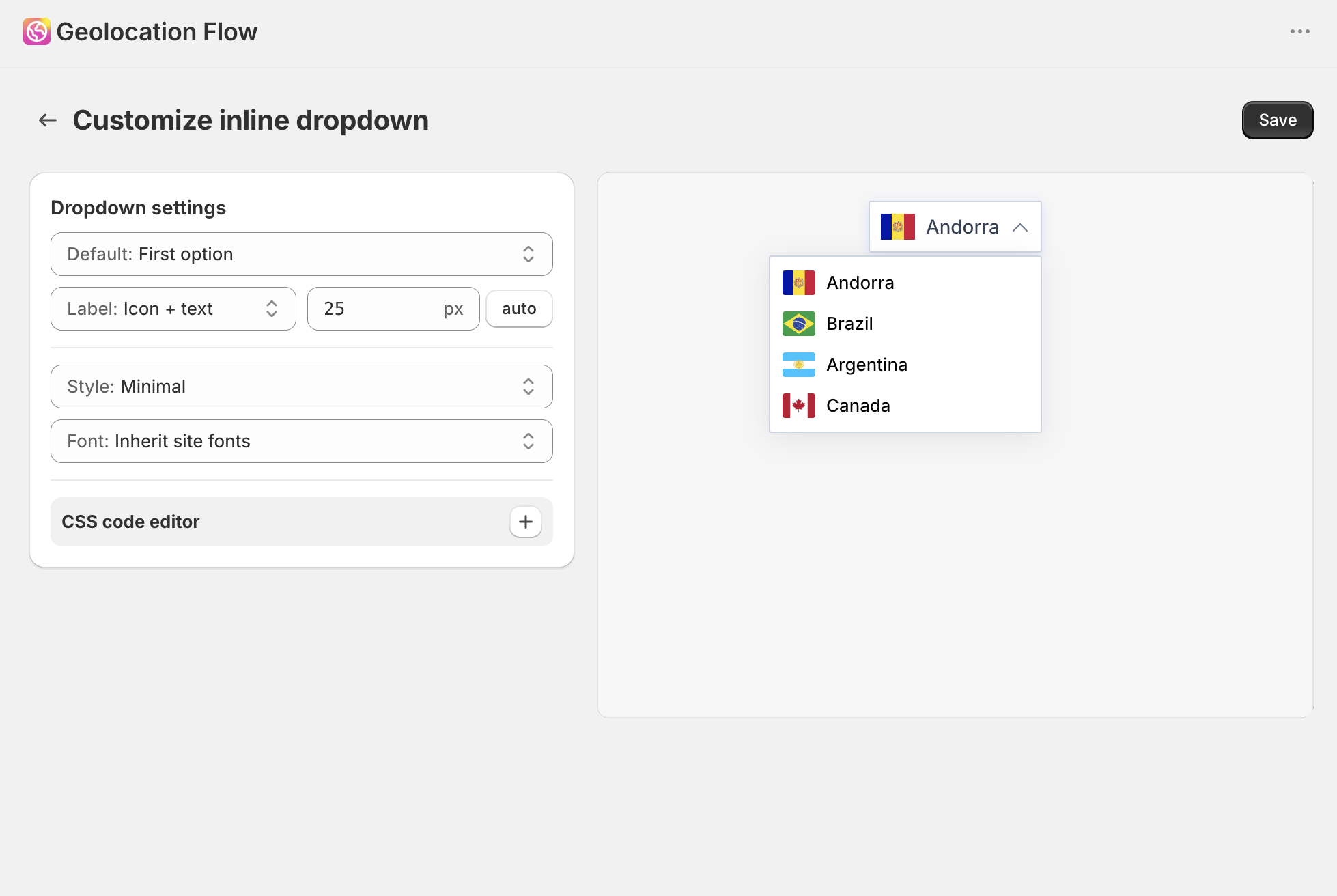
Default Selection (Pro)
Pro plan only. Controls what the dropdown shows before the visitor makes a selection:
- Placeholder (default) — shows placeholder text (e.g., “Select your region”)
- First option — pre-selects the first redirect button in the list
Placeholder Text (Pro)
Pro plan only. Set a custom placeholder label. Add per-language translations so the placeholder displays in the visitor’s language.
Templates (Pro)
Pro plan only. Pick from 6 built-in templates that control the overall dropdown style:
| Template | Description |
|---|---|
| Default | Fully customizable via dashboard style settings |
| Modern | Clean, elevated styling |
| Minimal | Stripped-back, text-only look |
| Rounded | Soft corners and subtle shadows |
| Glass | Frosted glass effect |
| Dark | Dark background with light text |
Templates other than Default use fixed styles. To modify them, use the custom CSS editor.
Font
Choose the font for the dropdown label:
- Inherit site fonts — uses your theme’s default font
- Or select a specific font: Arial, Georgia, Verdana, and others
Custom CSS (Pro)
Pro plan only. Add custom CSS for full design control over the inline dropdown.
Plan Gating
| Feature | Free | Pro |
|---|---|---|
| Inline dropdown (up to 1 redirect option) | ✓ | ✓ |
| Default selection control | — | ✓ |
| Placeholder text & translations | — | ✓ |
| Templates | — | ✓ |
| Custom CSS | — | ✓ |
Related Docs
- Custom Widget Redirects — manages the redirect list used by the inline widget
- Geo Targeting Rules — control which visitors see the inline widget
- Display Settings — page-specific visibility settings
- Inline Widget — cookies, query parameters, and custom JS rules