 apps
apps
Activating Theme Embed
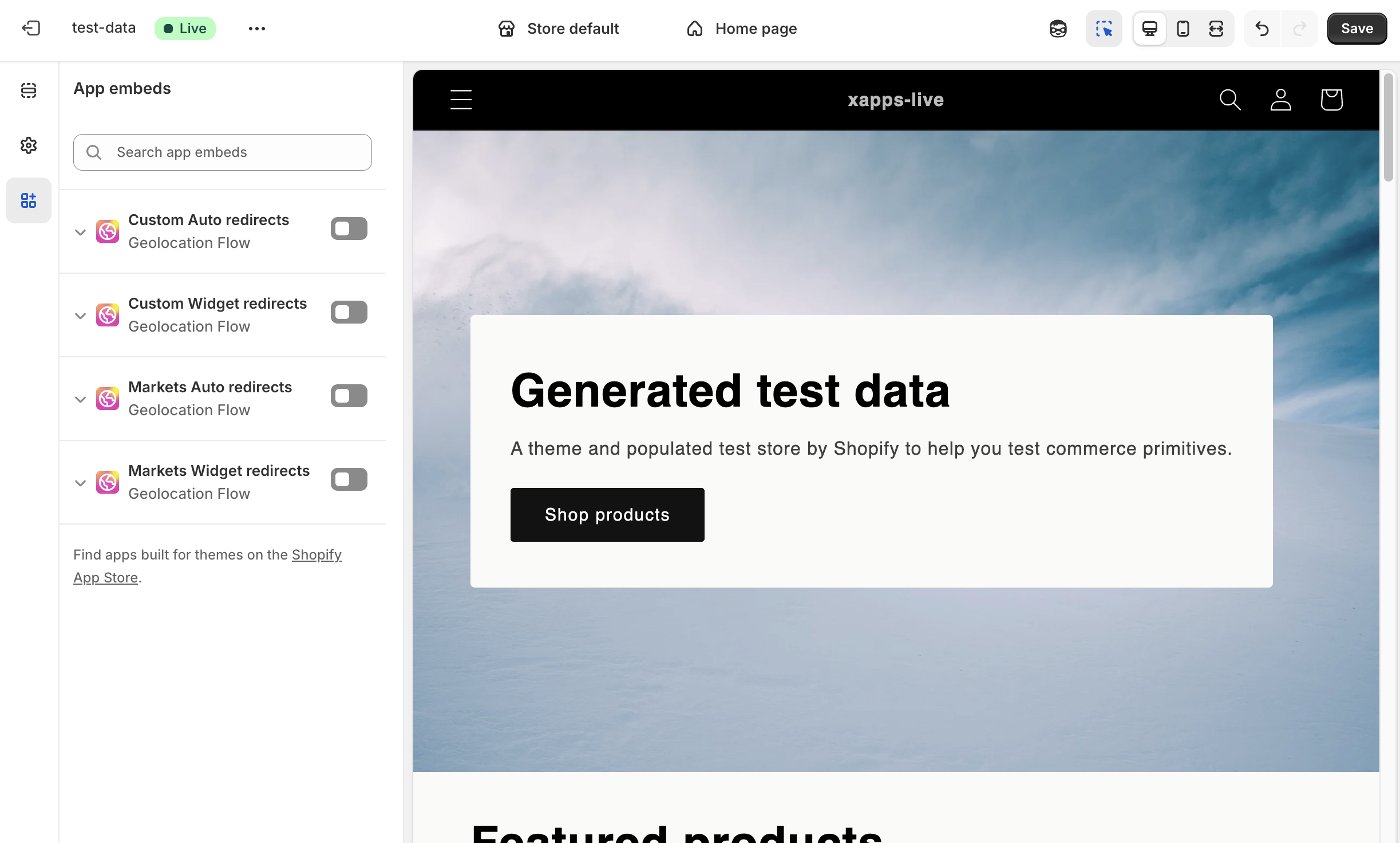
Geolocation Flow uses Shopify’s theme app embed system to inject redirect scripts into your theme. There are 4 separate embeds — one for each redirect type. You only need to enable the ones you use.
The 4 Embeds
| Embed Name | Description | Placement |
|---|---|---|
| Custom Widget redirects | Widget popup, top bar, or select | Body |
| Custom Auto redirects | Automatic redirects to custom URLs | Head |
| Markets Widget redirects | Markets widget popup, top bar, or select | Body |
| Markets Auto redirects | Automatic redirects to Shopify Markets | Head |
Enabling an Embed
- In your Shopify admin, go to Online Store → Themes
- Click Customize on the theme you want to edit
- Click the App embeds icon (puzzle piece) in the left sidebar
- Find the Geolocation Flow embed you need and toggle it on
- Click Save
Tip: You can also open the theme editor directly from your Geolocation Flow dashboard — each redirect type card on the home page includes an Activate in theme link.
Testing with Geo Simulator
Before activating on your live theme, verify everything works using the Geo Simulator:
- Enable the Theme App embed in your Preview theme.
- Append
?xgeo-sim=1to any page URL on your storefront - A simulator overlay appears letting you select any country to test with
- The simulator stays active for 24 hours (stored in the
xgeo-sim-activecookie)
Example: https://your-store.myshopify.com?xgeo-sim=1
To exit the Geo Simulator: Append ?xgeo-sim=0 to any page URL, or wait 24 hours for the cookie to expire.
Example: https://your-store.myshopify.com?xgeo-sim=0
Important Notes
- Each theme is separate — enabling the embed on a draft theme does not enable it on your published theme. You must enable it on each theme individually.
- Only enable what you need — if you only use Custom Widget Redirects, only enable that embed. Enabling unused embeds adds unnecessary scripts.
- Legacy embeds — if you previously used the older
[Legacy] Popup & Autoor[Legacy] Markets widgetembeds, you should disable those and switch to the new embeds listed above.
Troubleshooting
- Widget not showing? Confirm the embed is enabled on your published theme, not just a draft.
- Script blocked? Check if a content security policy, ad blocker, or cookie consent tool is blocking third-party scripts.
- Changed themes? When you switch your published theme, you need to re-enable the embed on the new theme.